Step 5: Releasing Your Home Screen(s) [KOBIL Docs]
This step explains how to publish your screen so it becomes visible to your users.
Once you're done adding services abd components, organizing them within sections, and finalizing your layout, the next step is releasing (updating) your screen so it goes live for your users. Here's how it works:
When Should I Update?
You should update a screen:
After adding or editing components, sections, titles, or tabs
After assigning services, updating service icons, or making visual layout changes
After testing and confirming the screen looks and behaves as intended
💡 The Update button becomes active only when unsaved changes are detected.
How to Release (Update) Your Screen
Click the Update Button
Located in the top-right corner of the builder.
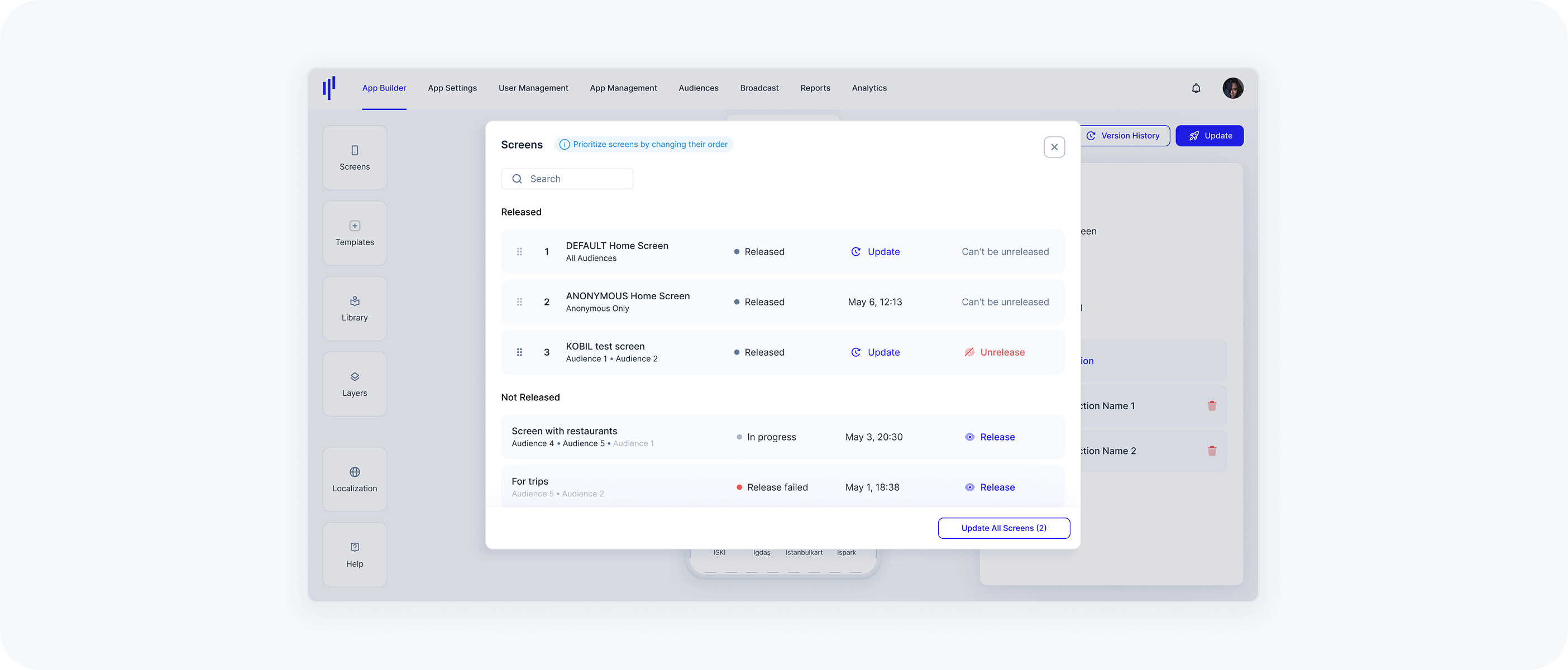
This will open a modal window showing all screens with pending changes.
Review the Update Modal
You'll see a list separated into two sections:
Released Screens (already live)
These will have a status like: Update, Released, or Can't be unreleased
- Not Released Screens
These may say In progress, Release, or Release failed
Choose How to Proceed, you have two main options:
- Option A: Update All Screens
Click the “Update All Screens (x)” button at the bottom of the modal.
This pushes all pending changes live in one go.
💡 This is ideal when you're confident about all screen changes.
- Option B: Update Specific Screens
Click the “Update” button next to an individual screen in the list.
- This only updates that one screen.
💡 Useful when you’re testing updates for specific audiences or don’t want to affect other screens yet.
- Option A: Update All Screens
Wait for Confirmation
After updating, you’ll see one of the following:
"One screen has been successfully updated"
"All screens have been successfully updated"